
AI Connection Guide
Tell your AI “save this to DoNow” and the conversation is kept as a note; the AI can also find notes you saved before. You only connect once.
Watch the video
This video has no sound; the steps are written on screen. It follows the same order as the steps below. The screens in it are examples, not your own data.
Before you start
- Sign in to DoNow with Google and turn on sync (the step where you choose an encryption password).
- In DoNow, open the gear icon at the bottom left > AI connection. If it is locked, press Unlock sync first and enter your password.
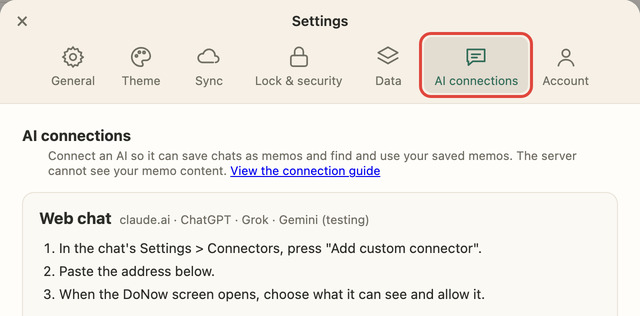
Connect a web chat (Claude · ChatGPT · Grok; Gemini is being tested)
Claude, ChatGPT and Grok connect by pasting one address. The Gemini app can connect with the same address too, but finding and saving notes is still being checked, so for Gemini we recommend the Gemini CLI connection under computer tools below. Copy the address with the copy button on the web chat card in Settings > AI connection.
https://donow.today/api/mcp1. Open the add-connector screen
- Claude (claude.ai): Settings > Connectors > Add custom connector
- ChatGPT: Settings > Connectors > Add custom connector
- Grok (grok.com): Connectors > New Connector > Custom
- Gemini (gemini.google.com, being tested): Settings > Connected Apps > Add custom app
Menu names differ a little between services and may change with updates. Gemini has conditions set by Google (account type, region, language); if you do not see the menu, check the conditions in Google’s Gemini help.
2. Paste the address and allow DoNow
After you paste the address and continue, a DoNow screen opens. Sign in, choose what the AI can see, and press Allow.
3. Check
In the AI chat, say “save this to DoNow”. The saved note arrives in DoNow’s AI inbox. In the Gemini app you can try it by typing @ in your question and choosing DoNow.
Saving works any time; finding notes works while a device with DoNow open is available. If you connect the same service again, the old connection is cut, and a connection not used for 30 days is cut automatically.
Connect a computer tool (Claude Code · Codex · Gemini CLI · Claude Desktop · Cursor)
These are AI tools you use from this computer’s terminal. DoNow creates the connection, and you finish by running a few commands on that computer. Node.js 20 or later is required.
1. Create a connection in DoNow
In Settings > AI connection > AI tools on your computer, type a name (for example, Laptop Gemini CLI) and press Create connection to see the install commands. The token is shown only now, so copy it before you close this screen.
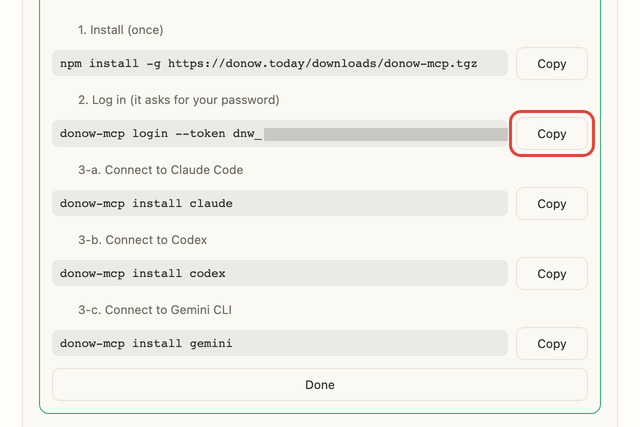
2. Run these in the terminal, in order
# 1) Install (first time only)
npm install -g https://donow.today/downloads/donow-mcp.tgz

# 2) Log in (paste the token from the screen; if asked for a password, enter your sync password)
donow-mcp login --token <token from the screen>

# 3) Connect the tools you use (pick one, or do them all)
donow-mcp install claude   # Claude Code
donow-mcp install codex    # Codex
donow-mcp install gemini   # Gemini CLI
donow-mcp install claude-desktop   # Claude Desktop app
donow-mcp install cursor   # Cursor
After connecting, restart that tool (for Claude Desktop, quit the app completely and open it again). In Gemini CLI, type /mcp and if donow appears, it worked; in Claude Desktop check Settings > Developer, and in Cursor Settings > MCP, for donow.
This computer is the only place you enter your password. The DoNow server cannot see your note contents. To disconnect, run donow-mcp logout and press Disconnect in DoNow Settings > AI connection.
Choose what the AI can see
You set this separately for each connection. Press What it can see on a connection.
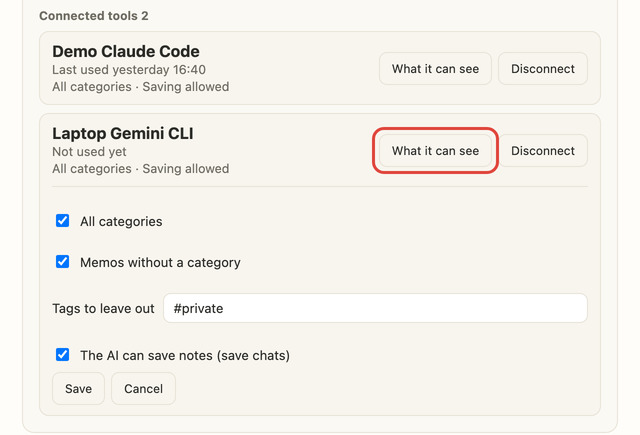
- All categories / Selected categories only: choose which folders to show.
- Tags to exclude: the default is #private. Notes with this tag are hidden from the AI.
- AI can save notes: turn it off and the AI can only read; saving conversations is blocked.
- You can also hide notes one at a time with Exclude from AI in a note’s menu.
Check it worked
- Tell the AI “Save this to DoNow.”
- The note arrives in DoNow’s sidebar AI inbox (with an AI label).
- Read it, then press Confirm as my note to make it an ordinary note.
- Later, ask the AI “Find the ○○ I saved last time.” and it looks in DoNow and answers.
If something goes wrong
Settings > AI connection only shows “Unlock”
You need to unlock with your sync password before you can create a connection. If you choose “Keep on this device for 30 days” when unlocking, it will not ask again.
The AI cannot find my notes
Finding notes works while a device with DoNow open is available. Also check that the note falls inside the connection’s scope (categories, excluded tags). For web chats, turning on “Find notes even when your device is off” means you do not have to keep DoNow open (it keeps a copy of in-scope notes on the server).
I asked it to save, but nothing is in the inbox
Check that AI can save notes is on in the scope settings. The inbox refreshes when you open DoNow.
It says the donow-mcp command cannot be found
Check that the install step (npm install -g …) finished and that Node.js is version 20 or later. Opening a new terminal often fixes it.
I want to disconnect
In Settings > AI connection, press Disconnect on that connection. That AI can no longer read or save your notes.
If it still does not work, tell us through Contact or Report a bug. You can see other features in the Help.