
Help
From getting started to AI connections, using each device, feature guides and frequently asked questions, all in one place.
Getting started
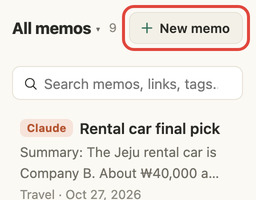
- 1Write a note
Press + New note at the top left and start with the title line; it saves automatically as you type. Put just a link on the title line and press Enter to make a link note, or drag a file in. You can use it right away without signing up.
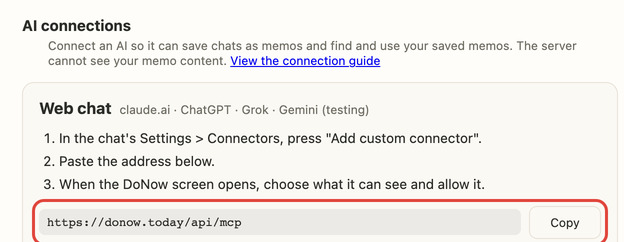
- 2Connect AI
In Settings > AI connections, paste one address into the connector for Claude, ChatGPT or Grok (the Gemini app is being tested), or run the command shown for Claude Code, Codex or Gemini CLI in your terminal. Sign in to DoNow, choose what the AI can see, and you are connected. By default it sees every note except those tagged #private, and you can leave out single notes with "Exclude from AI" in a note's ⋯ menu. You can disconnect at any time.
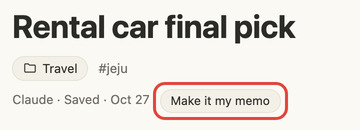
- 3Save and confirm AI conversations
Tell the AI "save this to DoNow" and the note arrives in your AI inbox. Check it and confirm it as your own note, and it becomes a regular note.
- 4Continue on other devices
Sign in with your Google account and set an encryption password to turn on sync. Keep the recovery key you get at first somewhere safe. On another device, sign in and enter the same password.

How to connect Claude, ChatGPT, Grok, Claude Code, Codex, Gemini CLI, Claude Desktop and Cursor is explained step by step with videos in the connection guide.
Take the quick start guide again
Using each device
- Web Available now
Open donow.today in a current browser on your PC, Mac, tablet or phone. There is nothing to install.
- Windows app Trial build available
Sign in with the same account as the web and use the same notes. Open a quick note from anywhere with Ctrl+Shift+Space; closing the window keeps DoNow in the tray.
- macOS app Trial build available
Sign in with the same account as the web and use the same notes. Open a quick note from anywhere with ⌘+Shift+Space; closing the window keeps DoNow in the menu bar. The app is signed and notarized by Apple.
- Android app Coming soon
Tap "Save to DoNow" in the share menu of other apps to send text, links and photos straight to a note. It uses the same account as the web.
- Save-from-anywhere button Available now
Drag the button in Settings > Save from anywhere to your bookmarks bar, and you can send the page you are viewing to DoNow in one click.
- iPhone · iPad app Coming soon
When the app is out, sign in with the same account as the web and continue with your notes as they are. Until then, use the web in your browser.
- Chrome extension Coming soon
We are working on an extension that saves the page you are viewing to DoNow with one click.
Installation instructions are also on the Download page.
Feature guides
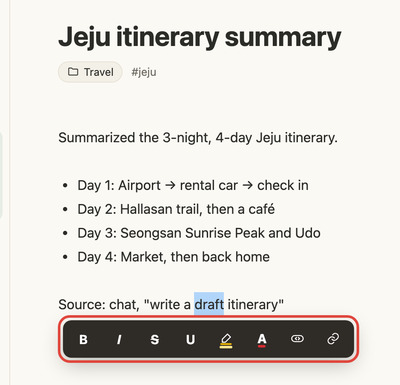
Edit what you see
Bold, headings, lists, checklists and tables appear right in the writing view. Call up the formatting you need with the + button at the left of a line or a / at the start of a line, and select text to get the bold, link and highlight bar.
Saving links
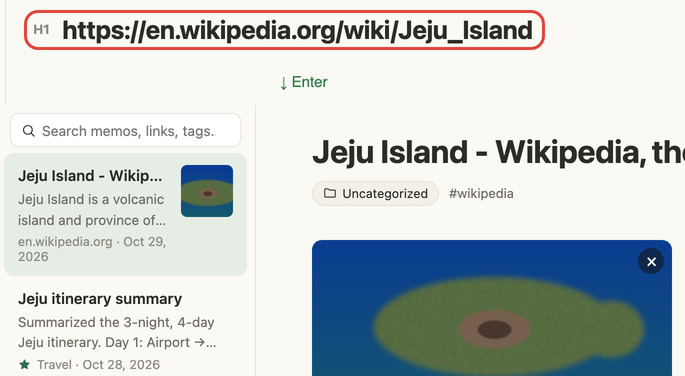
Put just a URL on the title line and press Enter to fetch the page title, main image and text into a link note. Pasting a link in the list also offers to save it, and if you already saved that link, it takes you to that note.
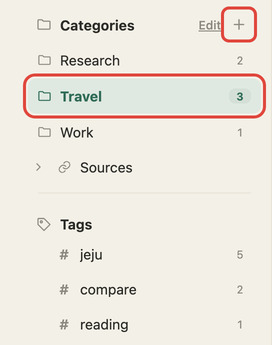
Categories, tags and links
Categories work like folders, with sub-levels, and you can group notes with #tags too. Write [[note title]] in the text to link notes together. You can also browse links by source, such as YouTube or blogs.
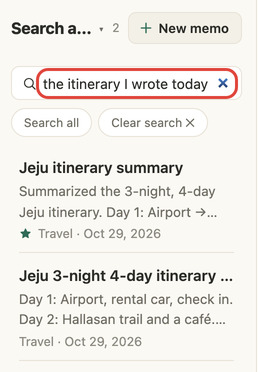
Search
Type a word you remember in the search box at the top. It searches not only titles but also text, tags and categories, and you can write the way you talk, like "the interactive whiteboard I saw at work last month".
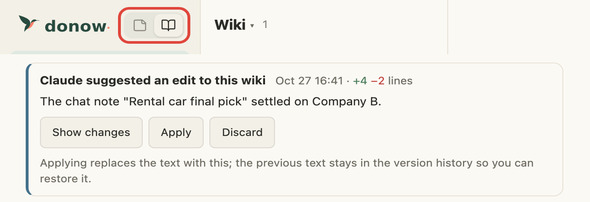
Wikis
Use the switch beside the logo to move between notes and wikis. AI builds wikis from your source notes and tells you what to fix with suggestion cards. You can review the changed lines and apply or discard them.
Favorites, trash and export
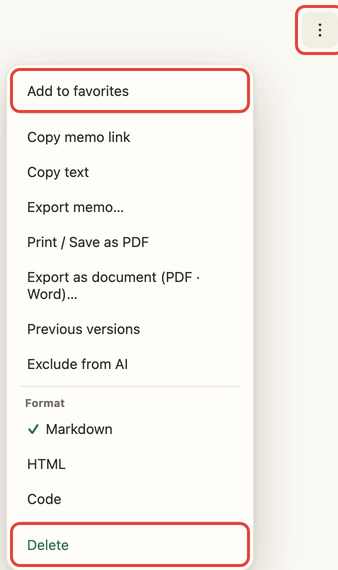
Open a note, then use the ⋯ menu at the top right to favorite it, export it or delete it. Restore deleted notes from Recently deleted. In Settings you can export notes as files, and make a backup including images that you can import again.
More about security and sync is in the FAQ below and the Privacy Policy.
FAQ
Is it free?
Yes. The basics such as writing notes, AI connections and sync across devices are free. People who keep a great many notes, use AI often, or need wikis, document export, automatic backup and original image sync use the paid Pro plan. See what is free and what is paid on the Pricing page.
Can I use it without signing up?
Yes. You can save notes right away without signing up, and they are stored in the browser on the device you are using. To continue on other devices, sign in with your Google account and turn on sync.
Where are my notes stored?
Notes are stored on your device first. When you turn on sync, they are encrypted on your device and stored in the app-only space of your own Google Drive, and the DoNow server does not store the contents of your notes. However, if you connect an AI chat (Claude, ChatGPT and so on) and turn on "Find even when my device is off", a copy of the notes in the scope you chose is placed on the server.
Can DoNow see my notes?
Sync data is encrypted with a key protected by the password you set, so even the company cannot know its contents. However, if you turn on "Find even when my device is off" in an AI chat connection, the server can read the copy of the notes in the scope that connection can see. Details are in the Privacy Policy.
If I connect an AI chat, are my notes stored on the server?
On the screen where you connect a web chat (Claude, ChatGPT and so on), "Find even when my device is off" is on by default. When it is on, a copy of the notes in the scope you chose (categories and excluded tags) is placed on the DoNow server, so the AI can find them even when no device has DoNow open. The server can read this copy. If you do not want that, uncheck it before connecting, or turn it off in Settings > AI connections. When you turn it off or disconnect, the copy is deleted right away, and it is brought up to date again each time you open DoNow.
What if I forget my encryption password?
If you have the recovery key you received when you turned on sync, you can open it again. If you lose both the password and the recovery key, even the company cannot recover your sync data, so please keep the recovery key somewhere safe.
If I clear my browser data, do my notes disappear?
If you have not turned on sync, yes, because the notes exist only on that device. For important notes, turn on sync or export them as files in Settings.
Which devices and browsers can I use?
Open it in a current browser on a PC, Mac, iPad or phone. You can also use the Windows and macOS apps (trial builds); the Android and iPhone · iPad apps are coming soon. Voice input works in Chrome, Edge and Safari, and is not available in Firefox.
Can I bring notes from other apps, or export mine?
In Settings you can export your notes as files and import exported files again. Export files from Obsidian vaults, Bear (TextBundle), Evernote (.enex), Google Keep (Takeout), Day One (JSON), KakaoTalk My Chat (.txt, .csv) and Notion (Markdown & CSV) can also be imported in Settings > Data > Import, with their folder structure, tags and images.
How do I delete my account?
While signed in, press Delete account at the bottom of Settings and agree in the confirmation window, and it is processed right away. Your account information, the encrypted sync data in your Google Drive, and the notes and settings stored on this device are all deleted immediately, and the Google account connection is removed. However, records of payments for paid plans are kept for the period required by law and are not deleted immediately. This cannot be undone, so export the notes you need as a backup first.